
Import
On a table_data tab, the toolbar overflow menu has an
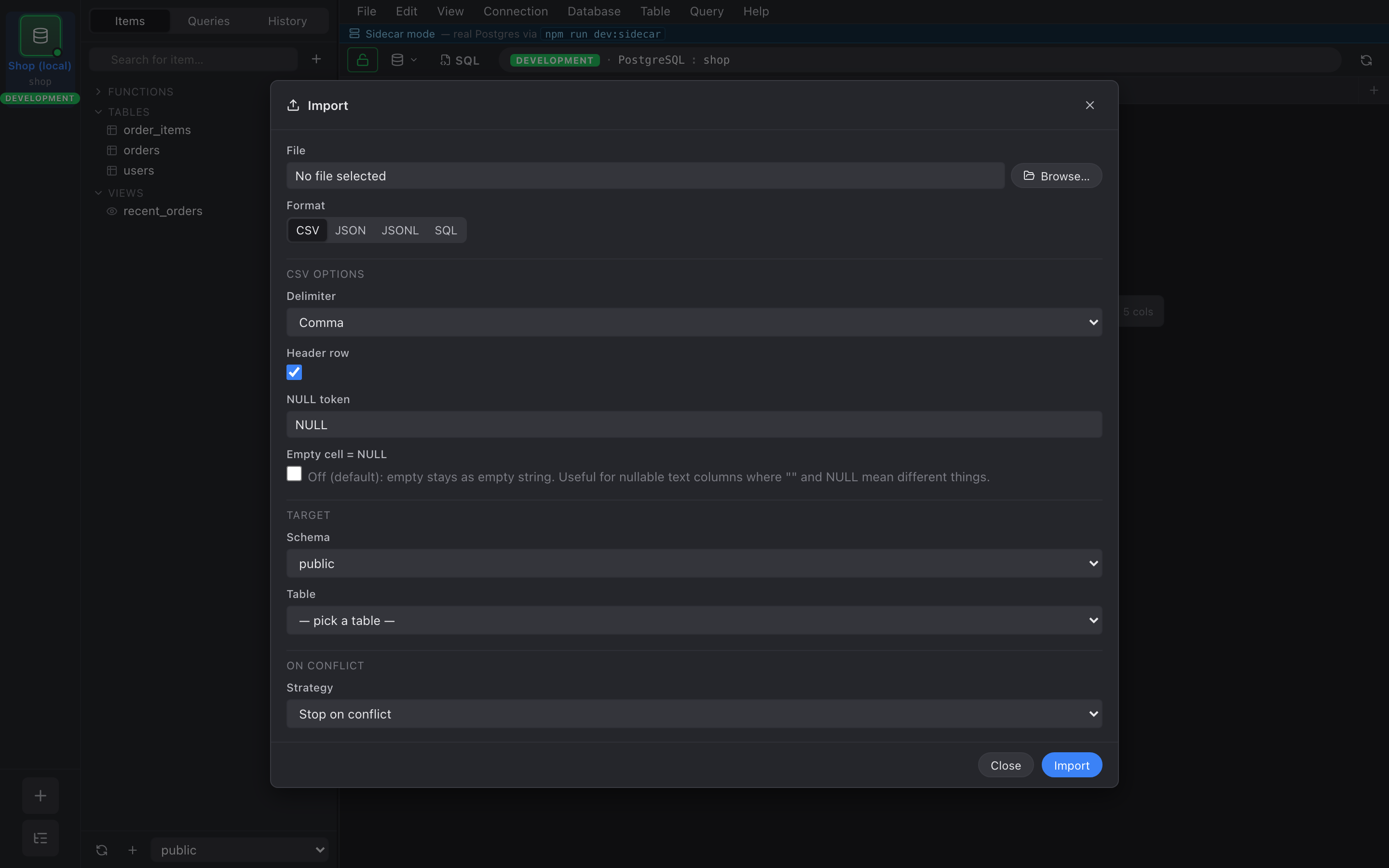
Import… entry. Pick a file and the import dialog opens.
Format detection
Section titled “Format detection”Nembrix reads the first few KB of the file to detect the format from extension and content sniffing. Supported: CSV, JSON (array), JSONL, and SQL (passes through to the query runner).
You can override the detected format from the picker at the top of the dialog.
CSV dialect options
Section titled “CSV dialect options”When the format is CSV, the dialog exposes the dialect controls:
- Delimiter —
,,;,\t,|, or custom. - NULL token — string in the file that should be inserted as
SQL
NULL. Defaults toNULL. - Header row — toggle. On = first row is column names; off =
treat the first row as data and label columns
column_1,column_2, …. - Empty cell = NULL — toggle. On = an empty field becomes
NULL; off = it becomes an empty string''.
Defaults are taken from your CSV preferences (see Preferences).
Column mapping
Section titled “Column mapping”The bottom half of the dialog is a table: one row per source column, with Source name, Sample values (first three distinct, non-null), an Include checkbox, and a Target column dropdown of every column in the destination table.
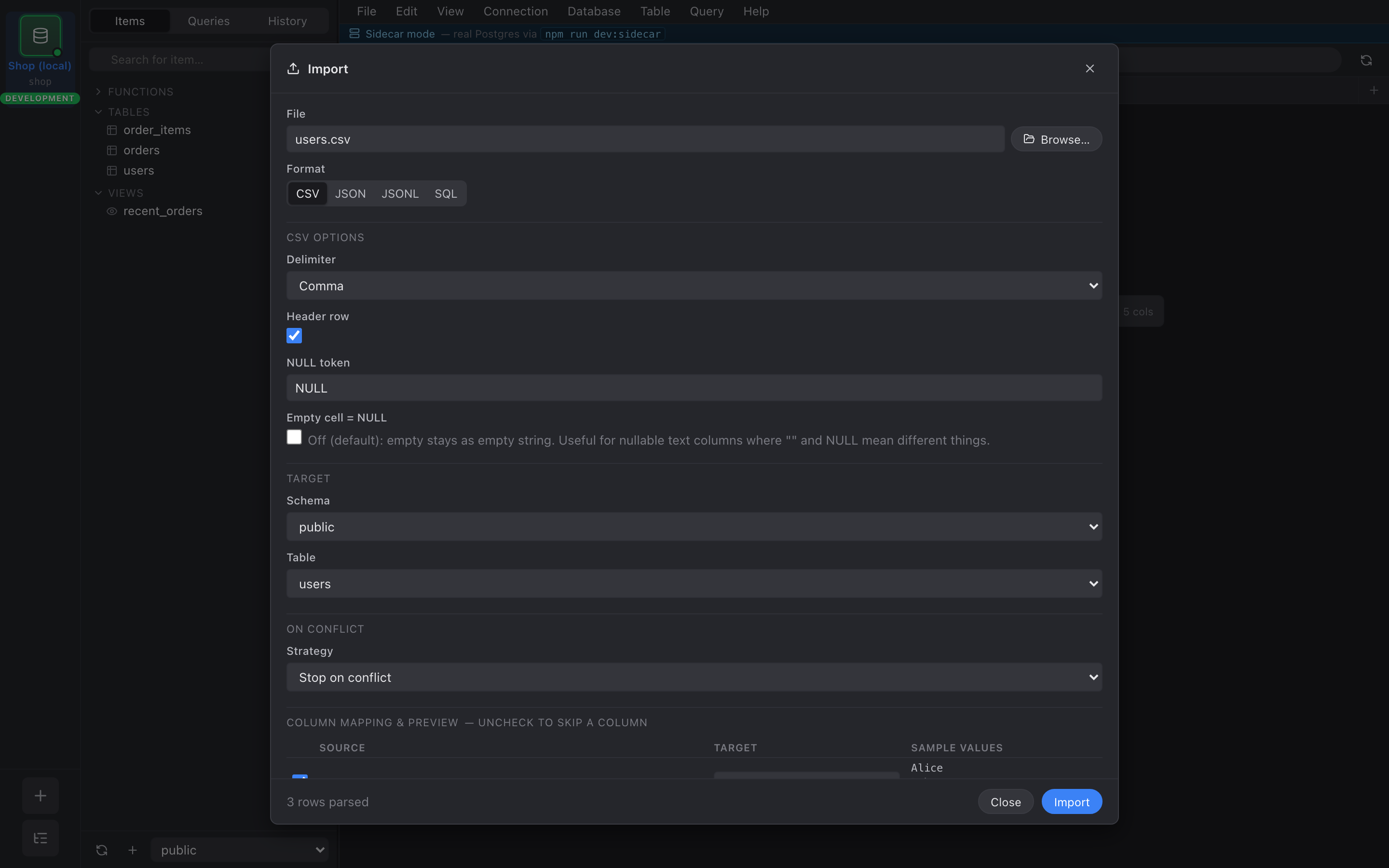
Nembrix auto-maps by case-insensitive name match. Unmatched source columns start unchecked.
Conflict modes
Section titled “Conflict modes”A radio group at the bottom controls what happens on PK conflict:
- Stop — first conflict aborts the import. The transaction rolls back; nothing is inserted.
- Skip — emit
ON CONFLICT DO NOTHING. Conflicting rows are silently skipped, the rest insert. - Update — emit
ON CONFLICT … DO UPDATE SET …for every included non-PK column. Effectively an upsert.