
Filters
Ce contenu n’est pas encore disponible dans votre langue.
The filter builder sits directly under the data toolbar. It’s the same
on every result grid, and every filter you add becomes a WHERE clause
on the underlying SELECT.
Add your first filter
Section titled “Add your first filter”Click + Add filter and the builder expands.
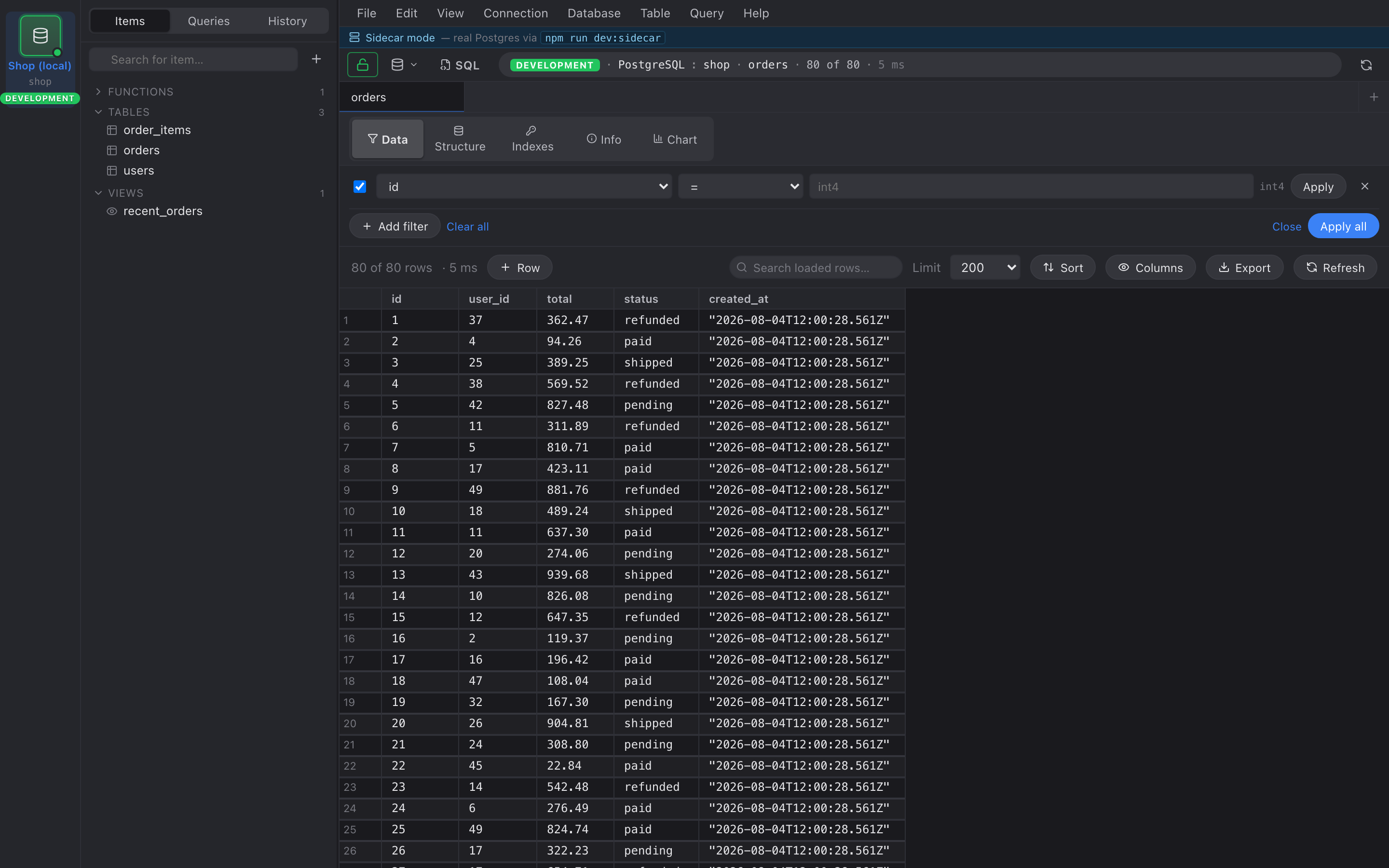
Each row has four things:
| Checkbox | Enable / disable this filter. Disabled chips stay in the builder but don’t appear in the SQL. |
| Column picker | All result columns of the current view. |
| Operator | See Filter operators for the full list. |
| Value | Free text. Validated per column type — numeric columns reject letters, UUIDs reject malformed strings, JSON columns reject invalid JSON. |
Press Enter to apply just that one row, or click Apply all at the bottom to commit every ready row at once.
Operator categories
Section titled “Operator categories”- Comparison —
=,≠,<,≤,>,≥ - Substring —
contains,does not contain,contains (case-insensitive), … - Pattern —
LIKE,ILIKE(raw, no wildcard escaping) - Null —
is null,is not null(input greys out)
contains / icontains translate to LIKE / ILIKE with %value%
under the hood, with % and _ in your value escaped so a literal
50% doesn’t match every string with a 5.
Per-row Apply vs Apply all
Section titled “Per-row Apply vs Apply all”Three buttons:
- Apply (per row) — commit just this filter and leave the rest alone. Useful when you want to layer filters incrementally.
- Apply all — commit every row that has a value. Rows you’ve typed half a value in get disabled, not dropped, so you can come back to them.
- Clear all — remove every filter chip and re-run the query.
Filters persist
Section titled “Filters persist”Active filters survive an app restart. They’re stored on the tab, not just in memory, so reopening tomorrow brings back exactly the same view you closed today.